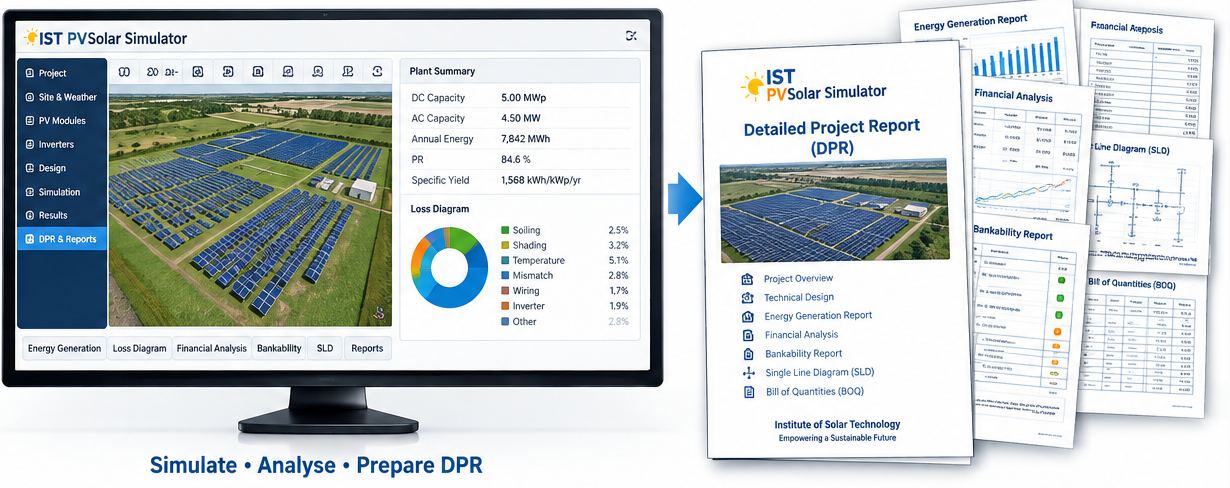
One-Click Solar Power Plant DPR Creation with IST PVSolar Simulator
IST PVSolar Simulator V9 now turns a finished solar design into a lender-style Draft Detailed Project Report (DPR) with a single click. Once your simulation has run, the new 📄 Draft DPR tab builds a 19-chapter Word report from your own project data and downloads it as Project_Name_draft-dpr.doc.
For most solar developers and EPC teams, the DPR is the slowest document in the project. The design may take a day; the report that explains it to a bank often takes weeks. This feature closes that gap.
What a DPR is, and why lenders insist on it
A DPR is the document a bank, an independent engineer or a government agency reads before it funds or approves a solar plant. It answers four questions in one place: is the plant technically sound, how much energy will it produce, what will it cost, and can it repay its debt.
A lender-grade DPR typically covers the site and land, the solar resource, equipment selection, plant design and grid connection, the energy yield with P50/P90 figures, the capital cost and means of finance, cash flows and coverage ratios, implementation, O&M, approvals, ESG, insurance and risk. Every chapter has to agree with every other one, and with the simulation behind it.
Why DPRs usually take weeks
The engineering is rarely the bottleneck. The paperwork is.
- Copy and paste from many tools. Yield figures come from one program, costs from a spreadsheet, the SLD from a CAD file and the layout from another drawing. Each has to be re-typed into Word.
- Numbers drift apart. Change the module or the tilt and the energy table, the cash flow and the executive summary all have to be updated by hand. One missed figure undermines the whole report with a lender.
- Charts and diagrams are rebuilt. Monthly yield charts, loss diagrams, probability curves and layout drawings are exported, cropped and pasted one at a time.
- Formatting eats days. Tables of contents, numbered figures, consistent tables and headers take time that adds nothing to the engineering.
- Every revision starts over. When the bank asks for a new tariff or a P90 basis, the cycle repeats.
How one-click DPR creation works
The Draft DPR sits in Run Simulation Engine, right after EPC Proposals & BOQ. Click it and the simulator reads everything you have already entered and calculated, then assembles the report in about a minute. There is nothing to re-type, so the report cannot disagree with the model.
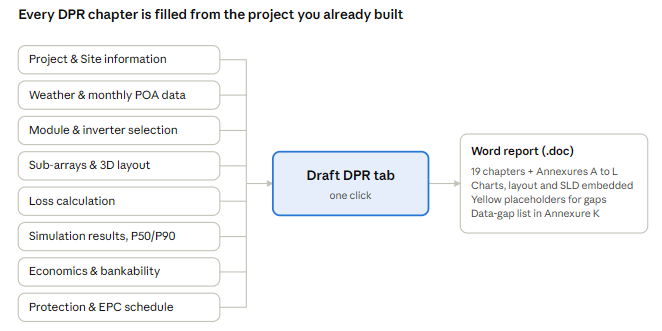
The output is a Word file with a running header and footer, page numbers and a Table of Contents that updates in one step. Charts, the plant layout and the single-line diagram arrive as images, so the file opens complete on any machine.
What's inside the generated DPR
The report follows the outline lenders and independent engineers expect, and fills each chapter from the live project.
Chapter | Content |
|---|---|
Cover, Document Control, Abbreviations, Table of Contents | Project name, capacity, Project Address, client, preparer, date, reference number |
1. Executive Summary | Plant at a glance, P50 / P90 (1-yr and 10-yr) energy, PR, specific yield, CUF, project cost, IRR, DSCR, LLCR, financial risk score, investment decision |
3. Policy and Regulatory Framework | Applicable tax rates, corporate tax, depreciation method and rate |
4. Site and Land | Coordinates, grid voltage, land use summary from the 3D layout |
5. Solar Resource | Data source, monthly climate table, Monthly POA Irradiance chart, POA heat map by month and hour, uncertainty |
6. Technology | Selected module and inverter parameter tables |
7. Plant Design | Electrical design check, sub-array table, orientation diagram, Sub-Array (Unit) arrangement in 2D and 3D, SLD, LT panel scheme, earthing and ESE lightning design |
9. Energy Yield | Loss diagram and table, monthly results, probability of exceedance, 25-year generation |
10–12. Cost, Finance, Financial Analysis | CAPEX table, financing structure, project- and equity-level models, year-by-year and full cash flows |
13. Implementation | EPC schedule of phases and dates |
16. ESG | Water use for cleaning, CO₂ savings |
19. Conclusions | A conclusion written from your actual results |
Chapters the software cannot know, such as sponsor details, land documents or approvals, keep the standard DPR wording with yellow-highlighted placeholders. Annexure K lists every data gap the generator found, so the team knows exactly what is left.
Step by step: from design to DPR
- Enter the project. In Project & Site, fill in the project name, client, Project Address, location and project type.
- Load the solar resource. Import TMY, or enter your own monthly data.
- Design the plant. Select the module and inverter, add your sub-array units and, for ground-mounted plants, trace the land and run Auto Fit in the 3D Shading Model.
- Set losses and economics. Complete Loss Calculation, then the CAPEX, OPEX, financing and tariff in Economics Evaluation, and click Calculate Economics.
- Run the simulation. Use hourly or sub-hourly resolution for bankable figures.
- Click 📄 Draft DPR. In Run Simulation Engine, open the Draft DPR tab. The report builds and downloads as
Project_Name_draft-dpr.doc. - Finish in Word. Right-click the Table of Contents and choose Update Field, then search for the yellow placeholders and complete them.
Changed the design? Re-run the simulation and click Draft DPR again. The whole report regenerates with the new figures in about a minute.
Who benefits
- Solar developers get a first-draft DPR for a lender meeting on the same day the design is ready.
- EPC contractors can attach a consistent technical and financial report to every bid without a separate documentation team.
- Consultants and owner's engineers start from a complete, correctly structured draft and spend their hours on judgement, not formatting.
- Banks and independent engineers receive reports where the yield, cost and cash-flow figures all come from one model.
- Students and trainees see how a real DPR is assembled from a simulation, chapter by chapter.
The biggest saving is on revisions. A tariff change, a new module or a P90 request no longer means editing dozens of tables by hand: re-run and click again.
Getting a bankable result: best practices
The Draft DPR is a draft by design. It gives you a complete, consistent report to review, not a document to submit unread.
- Use a real TMY. Import site-specific data, or licensed Meteonorm or SolarGIS data, before the figures go to a lender. The report flags it when only a default monthly table was used.
- Run hourly or sub-hourly. Bankable P50/P90 figures need a time-series simulation, not a monthly estimate.
- Complete the economics first. Financial chapters, the risk score and the conclusion are only as good as the CAPEX, financing and tariff you enter.
- Build the 3D layout. Auto Fit gives the land use summary and the Sub-Array (Unit) arrangement figures in Chapter 7.
- Close every placeholder. Work through Annexure K: land title, surveys, grid studies, quotations and the term sheet.
- Have an engineer sign it off. A qualified engineer should review the draft before it is issued as Rev 1.0.
From simulation to DPR in one click
A DPR used to be the point where good engineering slowed down. With IST PVSolar Simulator V9, the same model that designs and simulates your plant now writes its project report: every chart, table and figure drawn from one source, and regenerated whenever the design changes.
Try it on your next project. Open IST PVSolar Simulator, run your simulation and click 📄 Draft DPR in Run Simulation Engine. Your first draft DPR will be waiting in your downloads.